Apply configuration using the Portal
Use the Releem Portal to review and submit a recommended configuration. The Portal sequence is shared across supported databases; the available application options depend on the server's installation and configuration access.
Before selecting Apply, review the shared application checks and confirm the Agent has the configuration access required by your installation guide. For a managed database, approve the exact parameter changes and every instance or cluster sharing the affected group. If the required access or application option is unavailable, use the matching manual procedure.
Apply the configuration
- Open the server in the Releem Dashboard.
- Open Configuration in the Recommended Configuration block.
- Review the proposed changes and their current values.
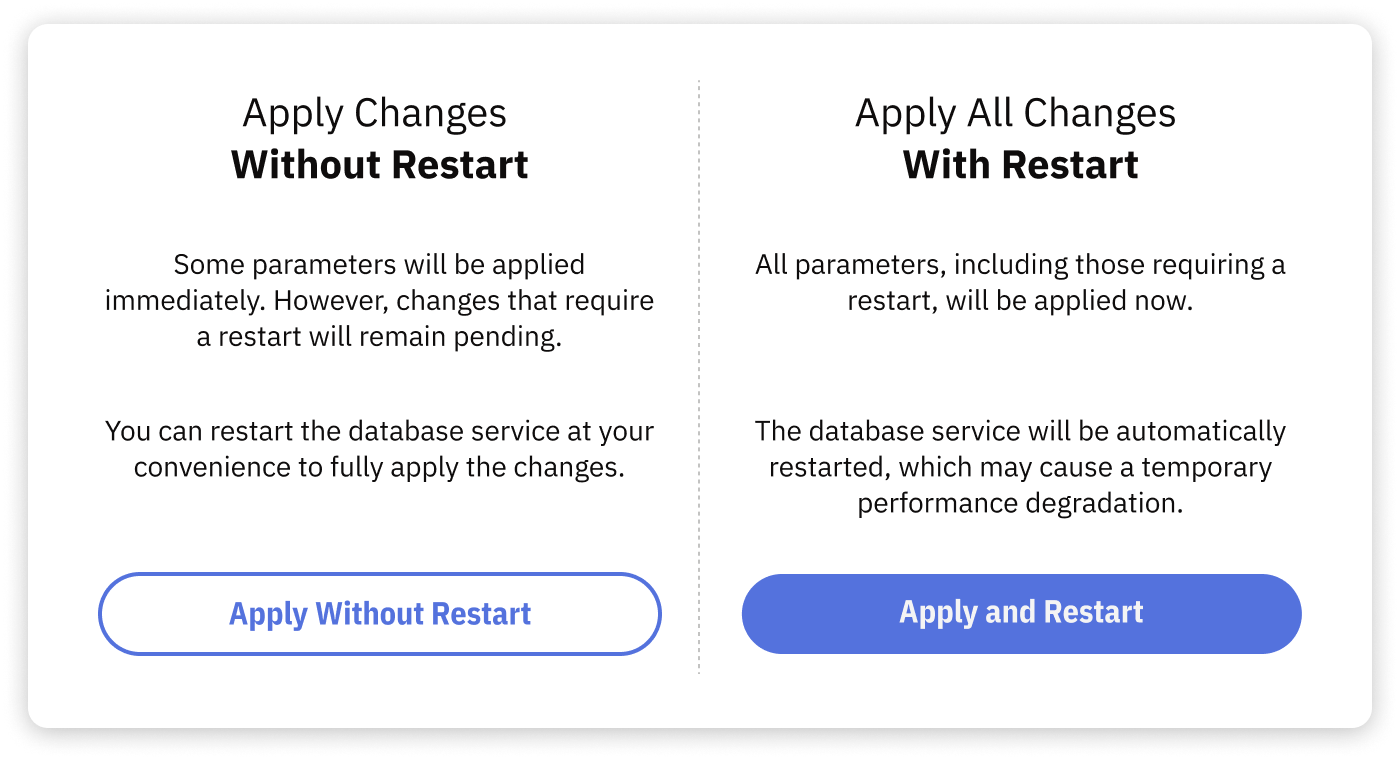
- Select Apply, then choose the option available for the server:
- Apply Without Restart submits values that the database or provider can apply dynamically. Confirm that those values are active; restart-required values can remain pending.
- Apply and Restart submits the changes and requests a database service or managed-instance restart. Use it only during an approved maintenance window.
- Wait for the application task to finish, then verify the result below.
Troubleshooting self-managed servers
Use the heading that matches the message shown in Releem. Preserve the exact message when you collect Agent or database logs.
The latest recommended configuration is partially applied
Check for restart-required variables. If a restart is pending, use Apply and Restart only in an approved maintenance window, then repeat the effective-value and health checks.
MySQL 'releem' user lacks required permissions to apply without restarting
Do not add grants from a generic troubleshooting command. Compare the account with the canonical MySQL permissions or MariaDB permissions, and have the database owner approve any change.
Recommended MySQL Configuration Not Found
Confirm that the Agent is connected and current database metrics are arriving. Review Releem Agent logs if collection is not current. Do not submit an older proposal to work around a missing result.
MySQL Version Lower Than 5.6.7
Do not use a generic redo-log replacement procedure. Review the recommendation and use the manual MySQL application guide with a version-specific maintenance and recovery plan.
MySQL Configuration Directory Not Found
Confirm that mysql_cnf_dir in the Agent configuration points to the active database include directory. Confirm that the directory exists and is writable by the supported application workflow. Do not reinstall the Agent until you have identified why the path is missing or incorrect.
Command to Restart MySQL Service Not Found
Confirm that mysql_restart_service in the Agent configuration matches the service command used on this host. For a database in Docker, use the documented container restart workflow rather than a host service command.
No Confirmation to Restart Service Received
Check the database service state and database error log. A large database can take longer to restart, but do not assume that a delayed response is successful. Confirm service health and application connectivity before retrying.
MySQL Service Failed to Start in 1200 Seconds
The Agent did not observe a successful database start before its timeout. Check the service state and database error log. If the service is still starting, continue to monitor it without submitting another configuration task. If startup failed, restore the known-good configuration.
MySQL Service Failed to Start
Do not retry while the database is unhealthy. Check the database error log and service status. Restore the known-good configuration artifact to the active path, then restart the database through your approved service procedure.
Failed to finish applying the configuration
The Agent stopped or could not report the final task state. Review the Releem Agent logs, the database error log, and the effective database settings. Remove credentials and customer data before sharing a focused log excerpt with Releem Support.
Unexpected Releem Agent error
Confirm that /opt/releem/mysqlconfigurer.sh exists and is executable by the account used for the application task. Review the Releem Agent logs for the first error. Do not replace the script or reinstall the Agent until the failure is understood.
The DB configuration file does not include the directory that contains Releem's option files
Confirm that the active database configuration includes the directory configured by mysql_cnf_dir. For Docker, confirm that the generated-configuration directory is mounted into the database container and included by its active configuration. Use the matching installation guide before retrying.
Troubleshooting AWS RDS
For Aurora MySQL and Aurora PostgreSQL, confirm both custom instance and cluster parameter groups are attached and their names match the Agent settings. Only the Agent targeting the writer modifies cluster parameters. Use the MySQL AWS guide or PostgreSQL AWS guide for the matching installation and troubleshooting steps.
RDS database instance has a status of not available
Open the RDS console and inspect the instance status and recent events. Correct the provider-reported problem or wait for the instance to return to Available before retrying. Do not submit another configuration task while the instance is unhealthy.
DB instance parameter group has a status of not in-sync
Open the instance's Configuration tab and inspect the assigned parameter group. Resolve pending or failed changes and complete any required reboot. Retry only after the parameter group reports In sync and the instance is Available.
DB instance parameter group is not specified in the Agent settings, or is not found in the database configuration
Confirm that the intended parameter group is assigned to the RDS instance. Then confirm that aws_rds_parameter_group in the Agent configuration or the CloudFormation DBParameterGroup value uses that exact name. Update the CloudFormation stack or Agent setting through the installation method you use.
Parameter group applying failed by timeout (long applying)
Check the RDS instance, parameter-group status, and recent RDS events. A provider operation can continue after the Portal task times out. Do not submit the same change again until the current provider operation finishes or fails.
RDS database instance failed to apply configuration
Review the RDS event and the parameter that failed. Confirm that the value is accepted by the selected engine version and parameter-group family. Restore the recorded value or previous parameter group when the instance does not return to its expected state.
Other errors applying without restart
Check the effective parameter values, parameter-group status, RDS events, and Agent logs. A completed Portal task does not prove that the provider accepted every value.
IAM role lacks required permissions to apply
Compare the Agent identity with the configuration access documented for MySQL on AWS RDS and Aurora, MariaDB on AWS RDS, or PostgreSQL on AWS RDS and Aurora. Grant parameter-group modification only for the approved custom groups. Aurora cluster changes also require the writer Agent's scoped rds:ModifyDBClusterParameterGroup access.
The latest recommended configuration is partially applied. To fully apply all parameters, restart the database instance.
Some parameters remain pending until RDS reboots the instance. Review the pending values, plan the interruption, and choose Apply and Restart only during the approved maintenance window. After the instance returns to Available, verify the effective values and application connectivity.
Troubleshooting GCP Cloud SQL
Compute Engine VM instance lacks required permissions to apply
Confirm that the Agent's Google Cloud identity has cloudsql.instances.get and cloudsql.instances.update in the project containing the instance, as documented in Install Releem for MySQL on GCP Cloud SQL. Viewer access alone can collect metrics but cannot submit an Apply change.
Other errors applying without restart
Review the Agent logs, Cloud SQL operation history, submitted database flags, and effective settings. Check whether Cloud SQL requires a restart. Do not repeat the task while an earlier provider operation is still running.
Troubleshooting Azure Database for MySQL
Azure identity lacks permissions to read the server
Confirm that the Agent identity can read the intended Flexible Server and its monitoring data. Review the identity and scope documented in Install Releem for MySQL on Azure Database for MySQL, then restart the Agent after correcting access.
Azure identity lacks permissions to apply configuration
Do not grant a broad subscription or resource-group role from this troubleshooting page. Have the Azure administrator approve a role scoped to the intended server and required configuration actions, then retry only after the effective assignment is visible.
The latest recommended configuration is partially applied
Check for parameters that require a restart. Review the pending values and use Apply and Restart only during an approved maintenance window. Confirm effective settings after the Flexible Server returns to Ready.
Azure MySQL server is not Ready
Review the Flexible Server status and recent Azure operations. Wait for the server to return to Ready, then confirm application connectivity before retrying the configuration task.
If a managed-instance change fails, do not retry while the instance is unhealthy. Restore the recorded parameter group or flag values through the applicable provider recovery procedure. If no verified recovery procedure exists, contact Releem Support and the provider administrator.