SQL Query Optimization
Use Query Optimization to review resource-intensive queries, examine a proposed optimization, apply the change yourself, and then compare the result. Releem analyzes queries that run slowly or frequently and suggests changes intended to reduce execution time and server load.
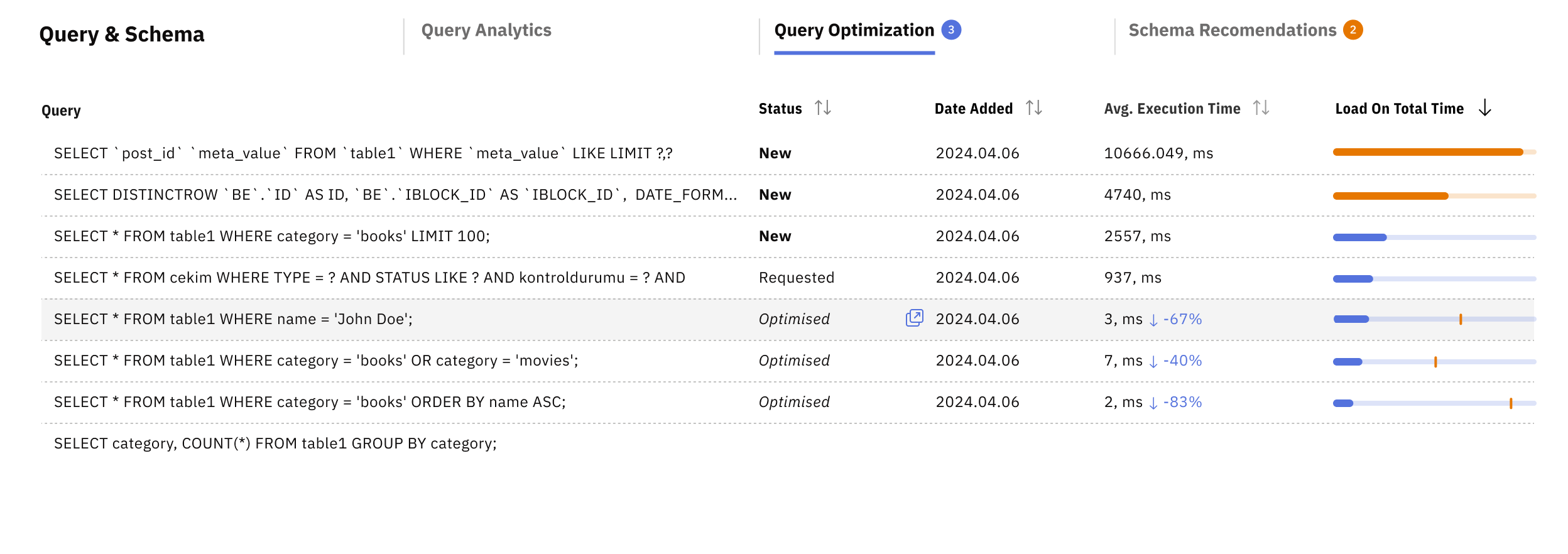
How Automatic Query Optimization Works
“Automatic” refers to query analysis and recommendation creation. In the manual workflow described below, you execute the proposed SQL statement yourself. Releem documents Agent-applied schema recommendations separately in Automatic Schema Changes.
1. Observe query data
Releem continuously analyzes your database queries to identify optimization opportunities. The system examines your top 100 queries and top 100 slowest queries to identify queries for review.
When Releem detects an inefficient query, it:
- Automatically flags it with a "New" status in the Query Optimization tab
- Sends you an email summarizing the inefficient queries
- Provides actionable recommendations for you to review
- Continues monitoring even when you're not actively logged into the dashboard
Query Analytics shows observed query activity; Query Optimization presents a proposed change for you to review.
2. Review the proposed optimization
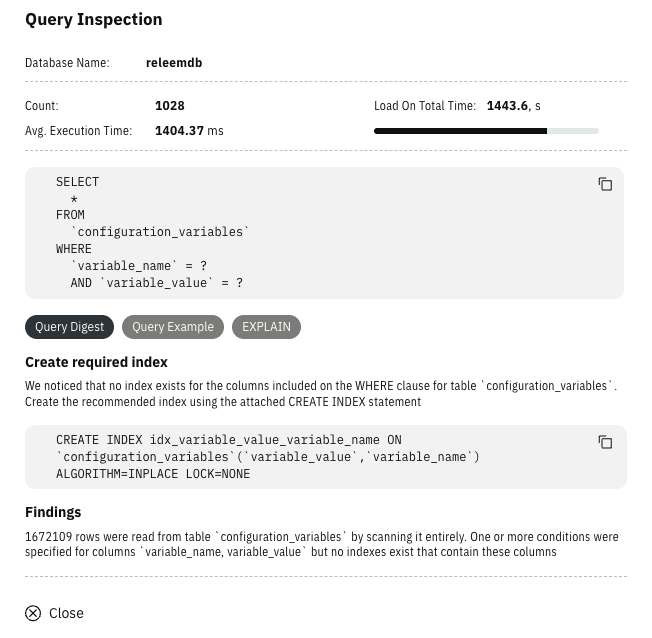
Open the Query Optimization tab to examine the recommendation for each flagged query. Each recommendation includes:
- The specific query causing performance issues
- Detailed explanation of why it's inefficient
- Ready-to-use
CREATE INDEXstatements and other recommendations
3. Implement the change manually
Review the proposed statement before you use it. If you decide to proceed, copy the provided CREATE INDEX statement and execute it on your database server. In this manual workflow, Releem does not run the statement for you.
Example:
CREATE INDEX idx_user_email ON users(email);
CREATE INDEX idx_order_date_status ON orders(order_date, status);
4. Validate the result
After you implement a recommendation, Releem continues tracking the query. When the query status changes to Optimized, use the follow-up reports to review the observed results. Compare the reported execution time and server load with the values you observed before the change. Review these measures for:
- Reduced query execution times
- Lower server load
Manual Query Optimization
Beyond automatic weekly analysis, you can request optimization suggestions at any time:
- Navigate to the Query Analytics tab on your dashboard
- Find the query you want to optimize
- Click the Get Recommendations button. A disabled Get Recommendations button means there are no recommendations yet.
- Review the optimization suggestions provided
This workflow is useful when you're actively developing new features or troubleshooting specific queries. If you implement a suggestion, use the same manual implementation and result-validation steps described above.